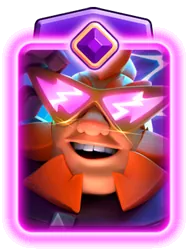
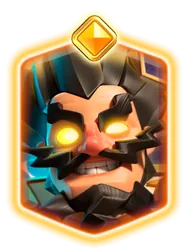
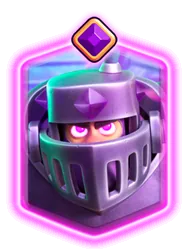
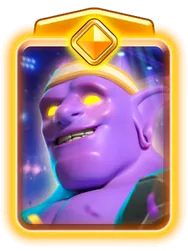
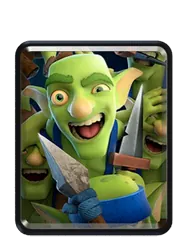
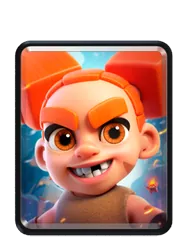
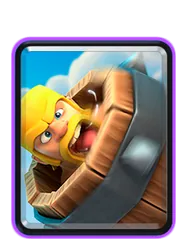
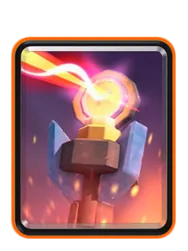
Welcome to the Guide Editor
This guide demonstrates how to format text, insert card images and explain placements with arena diagrams.
Use the toolbar to add formatting at your cursor. Select text first to format an existing phrase. Click Preview to check how your guide will look.
Title and Card Tags
Choose a title that tells readers what they will learn.
Use the Cards field above the editor to tag the cards your guide covers. You can add up to 20 cards. The first eight appear on the guide listing.
Tags help readers find your guide. To display a card image inside the content, use the Card button.
Headings
Click H to insert a heading, or type Markdown directly:
A Smaller Heading
A More Detailed Section
Use headings to separate topics such as card roles, opening plays, defence and matchups.
Bold, Italic and Strikethrough
Select text and choose a formatting button:
- Bold highlights important advice.
- Italic adds emphasis.
Strikethroughshows a correction.
Example:
Keep enough elixir to defend. A patient response can be better than playing every card immediately.
Lists
Use bullet lists when the order does not matter:
- Explain each card's role.
- Describe common mistakes.
- Suggest substitutions.
Use numbered lists for a sequence:
- Identify the opponent's main threat.
- Choose your defensive response.
- Support surviving troops when appropriate.
Quotes and Tips
Click Quote to highlight a short tip:
Explain why a placement works, not just which tile to use.
Quotes can also introduce an example or highlight a common mistake.
Links
Select text and click Link to add a reference.
Explore the best decks on DeckRoyale
Links may point to DeckRoyale, YouTube, TikTok, Instagram and Twitch. The editor warns you when a link is not allowed.
Use descriptive link text so readers know what they are opening.
Card Images
Click Card, search for a card and select it. Its image reference is inserted at your cursor.
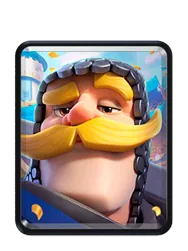
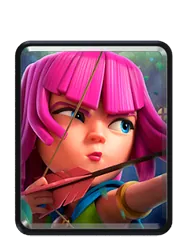
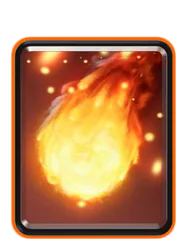
The reference looks like this:
[card_knight | size 50%]
Change the percentage to resize the image. Supported card sizes range from 10% to 200%. The percentage scales the card image, not the width of the page.
The picker inserts cards at 50%. Without a size, the image uses 100%:
Use the picker to find the correct reference for a card or its available Evolution and Hero variants.
Arena Diagrams
Click Arena to illustrate placements with marked tiles.
Inside the arena editor, you can:
- Click a tile to mark it.
- Click a marked tile again to remove it.
- Choose blue, red, yellow, green or purple marks.
- Enter coordinates such as
10x22and press Mark. - Toggle Show grid while choosing positions.
- Remove a mark using its coordinate button.
- Select Clear all inside the arena editor to remove every mark.
Coordinates start at the top-left corner. The first number is the column, from 1 to 18. The second is the row, from 1 to 32.
Each diagram supports up to 40 marked tiles. Tower tiles and blocked back-row tiles cannot be marked.
Adjacent tiles of the same colour form a region with a coloured outer outline.
Choose the Arena View
The Arena view dropdown offers:
- Full arena
- Only bottom half
- Only top half
When you select a half, the excluded part is dimmed in the editor. You cannot mark it by clicking or entering coordinates.
Selecting a half removes any existing marks outside that view. Switching back to Full arena does not restore those removed marks.
The finished diagram is cropped to the selected view. Both half views include the river.
Mark at least one visible tile before inserting a half-arena diagram. Otherwise, the editor displays a warning.
Click Insert when the diagram is ready.
Example: Coloured Regions
The groups below demonstrate 2×2 and 3×3 regions. They illustrate the editor tools, not recommended placements for a specific matchup.
Compare Arenas Side by Side
Place arena blocks directly after each other, without an empty line between them.
On desktop, they appear beside each other and wrap when the row is full. On phones, they stack vertically.
Compare a 2×2 area with a 3×3 area:
Start a New Row
Leave an empty line between arena blocks to start a separate row. After the closing three backticks, press Enter twice before the next block.
These diagrams appear in separate rows:
Show the Top Half
Use Only top half to focus on the upper side of the arena.
Its Markdown block starts with arena top:
The bottom-half equivalent starts with arena bottom.
Show the Full Arena
Use Full arena when you need to illustrate both sides.
Its block starts with arena, without a half-view option:
Edit an Existing Arena
Return to text mode and place your cursor inside an existing arena block. Click Arena to reopen it, adjust the marks or view and select Update.
A guide can display up to 10 arena diagrams.
Tables
Type Markdown tables directly to compare options:
| Tool | Useful for |
|---|---|
| Card images | Showing the cards being discussed |
| Arena diagrams | Explaining tile positions |
| Numbered lists | Teaching a sequence |
| Quotes | Highlighting a short tip |
Showing Syntax as Text
Surround a short example with backticks to show its syntax:
[card_knight | size 50%]
For longer examples, use a fenced code block:
Situation: Describe the opponent's push.
Response: Explain your defensive choice.
Placement: Add an arena diagram.
Reason: Explain why the play works.
Section Dividers
A line containing three hyphens creates a divider:
Use dividers to separate major parts of a longer guide.
Local Drafts
Your content is saved automatically in this browser while you write.
If you leave without saving and return later, choose:
- Restore draft to recover your unfinished text.
- Discard to remove the local draft and continue with the saved version.
Drafts are separate for each account and guide. A local draft does not replace the saved version automatically.
After a successful publication or update, the local copy is cleared.
Local drafts are available only in the same browser. If local saving is unavailable, the editor displays a warning.
Clear All Content
The Clear all button at the far right of the main toolbar clears the guide's content.
It first asks for confirmation:
- Cancel keeps your text.
- Clear content removes the text and its local draft.
Your title and card tags stay unchanged. After clearing, the editor returns to text mode so you can start writing again.
Clearing the editor does not update an already published guide until you save your changes.
Preview and Publish
Click Preview to see your formatted guide. Click it again to return to editing.
Before publishing:
- Check your title and card tags.
- Review headings and formatting.
- Check card sizes and arena marks.
- Confirm that diagrams use the intended view and row layout.
- Check your links.
- Read the complete guide in Preview.
Titles can contain up to 120 characters. Guide content can contain up to 10,000 characters. The editor displays character counters.
Click Publish guide when you are ready. When editing an existing guide, click Save changes to publish your updates.
Comments
Log in to join the discussion.
No comments yet. Be the first to say what you think.